
Loading
 ← Back to blogs
Learn Canva from scratch with this beginner guide. Discover templates, design tools, social media graphics, presentations, videos, and essential design tips.
Creating professional-looking designs used to require advanced graphic design software and years of experience. Today, tools like Canva make design much easier for beginners.
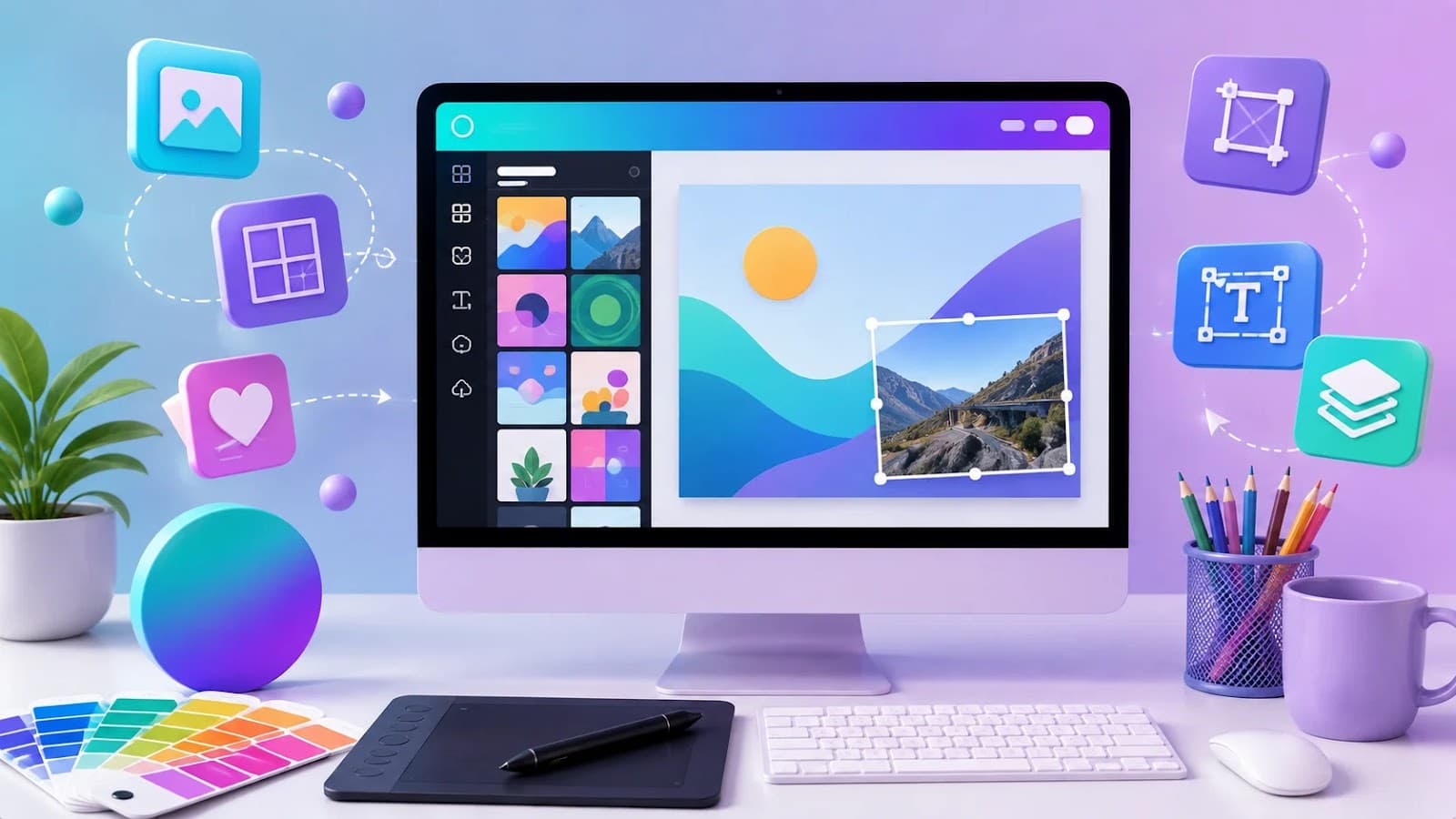
Canva is a popular online design platform that allows students, marketers, business owners, content creators, and professionals to create graphics, presentations, social media posts, videos, documents, and other visual content.
You don't need advanced design skills to get started. With templates, drag-and-drop editing, fonts, images, videos, and other design features, beginners can create professional-looking content quickly.
In this guide, you'll learn what Canva is, how it works, important features, what you can create with it, and practical tips for getting started.
Canva is an online visual design platform that allows users to create digital and print designs.
You can use Canva to create:
Its simple interface makes it suitable for beginners as well as experienced designers.
Canva is useful because it makes graphic design more accessible.
It helps beginners:
For digital marketing students, Canva is particularly useful because visual content is an important part of online marketing.
The basic Canva workflow is simple:
Select what you want to create.
Examples:
Canva provides many ready-made templates.
You can start with a template or create a design from scratch.
Change:
Upload your own:
Depending on the design, you can export or share your work in supported formats.
When you open Canva, you'll typically find options for:
The exact interface and available features can change as Canva updates its platform.
Templates are one of Canva's biggest advantages for beginners.
Instead of designing everything from scratch, you can choose an existing layout and customize it.
Templates are available for:
Use templates as a starting point rather than copying them without customization.
The Canva editor allows you to modify your design.
Common editing options include:
The exact tools available may depend on the design type and Canva plan.
Text is an important part of most designs.
You can customize:
Avoid using too many fonts in one design.
A simple combination of one or two complementary fonts often creates a cleaner result.
Colors influence how people perceive a design.
When selecting colors:
For professional designs, create a simple color palette and use it consistently.
Canva allows you to add images from its available library or upload your own.
You can:
Use high-quality images that are relevant to your message.
Elements can include:
Use elements carefully. Adding too many visual elements can make a design look cluttered.
Canva is widely used for social media content.
You can create:
Always choose the appropriate dimensions for the platform and content format you're creating.
Canva can be used to create presentations for:
A good presentation should focus on clear information rather than filling every slide with text.
Canva makes it easy to create promotional materials.
A good poster usually includes:
Keep the most important information visually prominent.
A thumbnail is one of the first things viewers see before clicking a YouTube video.
Effective thumbnails usually have:
Avoid overcrowding the thumbnail with too many elements.
Canva can also be used for basic video creation.
You can work with:
This makes Canva useful for social media videos and simple marketing content.
Digital marketers can use Canva to create:
For marketers, Canva can reduce the time required to produce everyday visual content.
Students can use Canva to create:
It can also help students present information in a more visually engaging way.
Businesses can use Canva for:
Consistent branding can make business content look more professional.
For businesses and marketing teams, brand tools can help maintain consistency.
Brand assets may include:
Using consistent brand elements helps create a recognizable visual identity.
The availability of specific brand features depends on the Canva plan.
Canva has introduced AI-powered features that can assist with tasks such as:
AI features and availability can change over time and may vary by plan or region.
AI should be treated as a creative assistant rather than a replacement for design judgment.
Canva offers different plan options.
The free version provides many useful design capabilities, while paid plans provide additional features, assets, and tools.
Before choosing a plan, consider:
For beginners, starting with the free version can be a practical way to learn the platform.
Learning Canva is not just about knowing where the buttons are. Understanding basic design principles will help you create better work.
Keep elements properly aligned.
Make important elements visually stand out.
Show viewers what they should look at first, second, and third.
Distribute visual elements so the design doesn't feel too heavy on one side.
Leave enough empty space between elements.
Use consistent fonts, colors, and visual styles.
Beginners often make these mistakes:
A simple design is often more effective than a complicated one.
A simple workflow for beginners is:
Choose the objective
↓
Select the correct design size
↓
Choose a template or blank canvas
↓
Create a visual hierarchy
↓
Add your content
↓
Apply colors and fonts
↓
Check alignment and spacing
↓
Review on different screen sizes
↓
Export and publish
Learn:
Learn:
Practice:
Explore:
Practice is the best way to improve.
✔ Create a Canva account
✔ Explore templates
✔ Learn the editor
✔ Practice typography
✔ Learn color combinations
✔ Create social media posts
✔ Design a presentation
✔ Create a poster
✔ Create a YouTube thumbnail
✔ Practice video editing
✔ Learn basic design principles
✔ Build a small design portfolio
Yes. Canva is designed to be beginner-friendly, and its drag-and-drop interface makes it relatively easy to create designs without advanced graphic design experience.
Canva offers a free plan with many design features. Additional features and premium assets are available through paid plans.
Yes. Canva is widely useful for creating social media content, advertising creatives, presentations, posters, infographics, and other marketing materials.
Yes. Students can use Canva for presentations, academic projects, posters, resumes, infographics, and other educational materials.
No. Beginners can start with templates and gradually learn design principles such as typography, alignment, color, hierarchy, and spacing.
Canva is an excellent starting point for anyone who wants to learn visual design without spending years mastering complicated design software. Its templates, drag-and-drop editor, media library, and growing collection of creative tools make it useful for students, marketers, businesses, and content creators.
However, learning Canva is only one part of becoming a good designer. Understanding color, typography, alignment, hierarchy, spacing, and visual communication will help you create designs that are not only attractive but also effective.
Start with simple designs, practice regularly, study professional examples, and gradually build your own design style. With consistent practice, Canva can become a valuable skill for your education, career, and digital marketing work.

Learn what Digital Marketing is, its types, benefits, career opportunities, AI trends, and why it's one of the most in-demand skills for students and professionals in 2026.

Discover the benefits of learning Digital Marketing after college, explore career opportunities, essential skills, freelancing, and how to build a successful Digital Marketing Career.

Explore the top 10 Digital Marketing Skills every student should master, from SEO and Google Ads to AI tools, to build a successful Marketing Skills portfolio and career.